Authoring Templates in Word, Without Ever Opening CRM

Ask who owns your contract templates and you usually get two answers that don't match.
Legal and sales ops own the words. They know which clause applies to a renewal, what the liability cap should be in California, and which paragraph the customer always pushes back on. IT owns the template. They know the API name of the field that holds the close date, how the merge syntax works, and which sandbox to test in.
Neither group can finish the job alone, so every change becomes a handoff. A clause edit that takes ninety seconds to write takes three weeks to ship.
The OpusDocs Word add-in removes the handoff by putting the whole job in the one place the business user already works: the Word document itself.
Author directly in Word
The add-in is a task pane that sits beside your document in Microsoft Word. The contract is on the left, exactly as it will be sent. The authoring tools are on the right. Nothing is a separate environment, a separate login, or a separate mental model of what the document is.
It runs in Word on the desktop and Word for the web, which matters more than it sounds. Templates are written the way contracts are written: by several people, arguing in tracked changes and comments. Because the add-in works in Word for the web, your legal reviewer can coauthor the template live, in the same document, at the same time, with the merge fields and conditions already in place. The template is not a technical artifact that gets reviewed after the fact. It is the document, and it gets reviewed the way documents get reviewed.
The work is organised into six tabs, which is also the order the work tends to happen in: Merge, Segments, Sign, AI Review, Preview, and Publish.
Find Salesforce fields
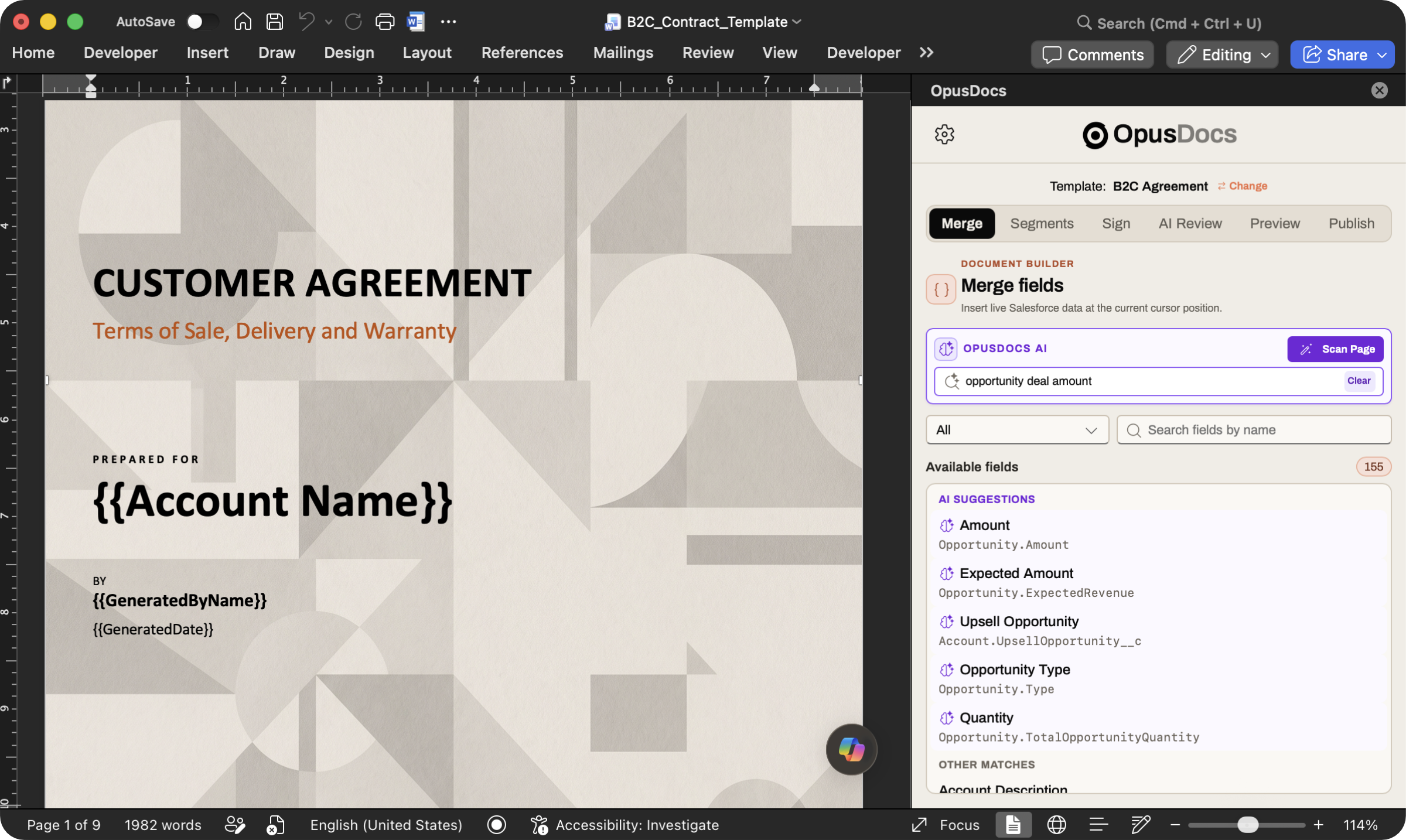
The first thing that stops a business user cold is the field list. A mature Salesforce org has thousands of fields across standard and custom objects, and the one you want is called Opportunity.Contract_Term_Months__c, which you would only ever find if you already knew it existed.
So the add-in lets you skip that. Select the place in the contract where the value belongs, describe what you want in ordinary words, and OpusDocs AI searches your org's actual schema and offers the fields that match. Ask for "the deal amount" and you get the opportunity amount. Ask for "how long the contract runs" and you get the term field, whatever your org happens to call it.
Two things make the suggestions trustworthy rather than merely convenient:
- They come from your org, not a generic list. OpusDocs reads the standard and custom objects your business actually runs on, so what's offered is what exists and what this template is allowed to use.
- Inserting one is a real merge field. Pick a suggestion and it goes in at the cursor as a proper field, not as text that looks like one. The document you're editing stays a valid Word document throughout.
You can also browse and search the field list directly when you already know what you want. The AI is there to remove the prerequisite, not to take the decision away from you.
Define conditional clauses
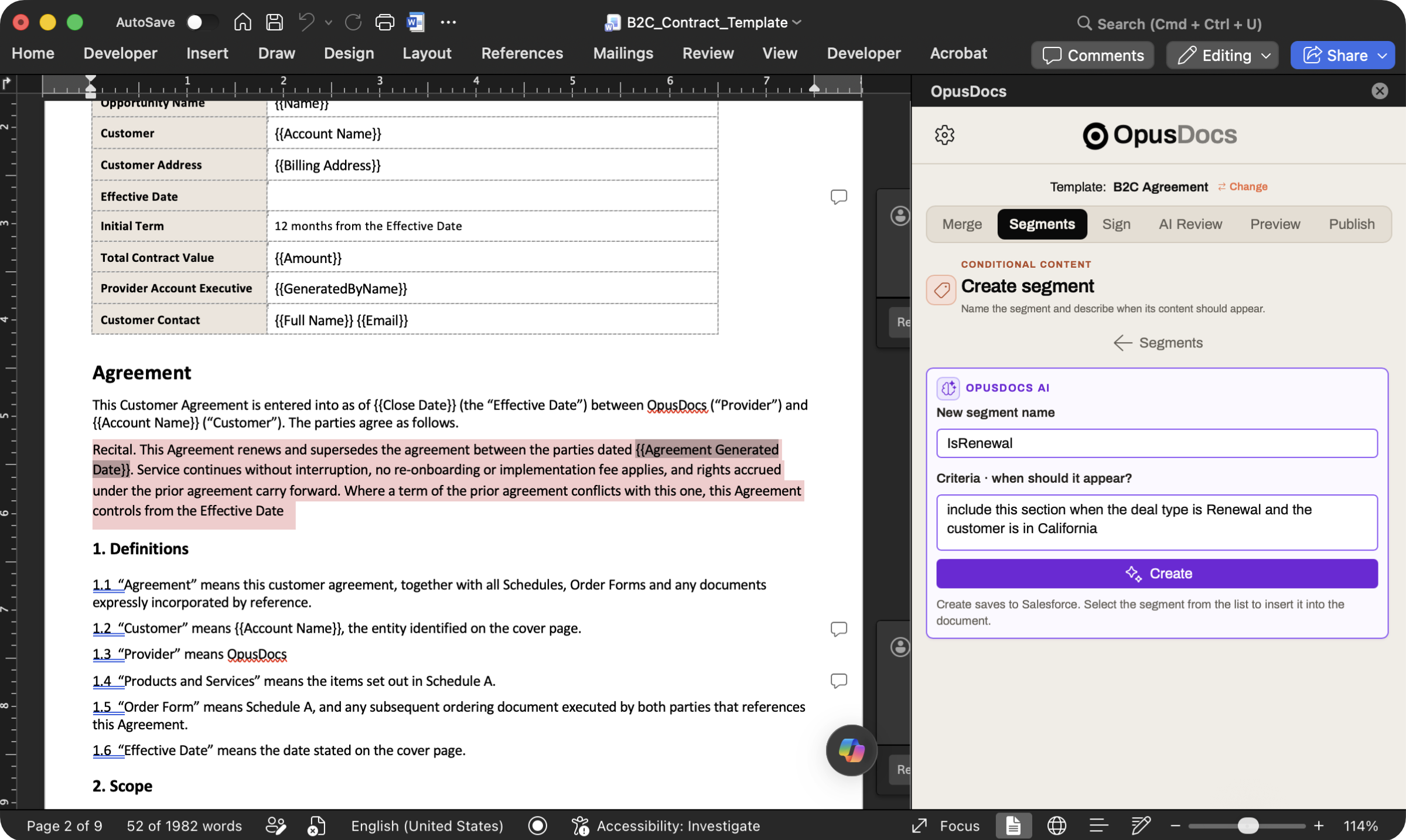
Real contracts are conditional. The auto-renewal language appears for some deals and not others. California gets its own notice period. The data-processing terms only apply when the customer is handling personal data.
Traditionally, encoding that is where business users lose control entirely, because it means writing the condition in someone's rule syntax. In OpusDocs, you select the clause in the document and describe the condition the way you'd explain it to a colleague: "only for renewal deals in California." The AI turns that into criteria against the fields in your org, shows you what it understood in plain language, and marks the clause in the document so you can see its boundaries while you write.
The part that surprises people is reuse. Conditional segments are named, and a name means the same thing everywhere it's used. So the Segments tab also shows you the conditions your organisation's other approved templates already rely on, and where each one is used. When you need "renewal deals in California," you borrow the definition your colleague already wrote and had approved, rather than inventing a second one that drifts from the first.
That is how a library of conditions stays consistent across dozens of templates without anybody policing it.
Place signature tags
Signing is part of the template, not a step someone bolts on afterwards. In the Sign tab you choose the signer role, Customer, Account Executive, Legal, and insert the signature, initials, name, title, or date-signed tag where it belongs in the document.
Because the tags live in the template, the signing experience is designed by the person who designed the contract, and it's reviewed at the same time as the words are.
Review template issues
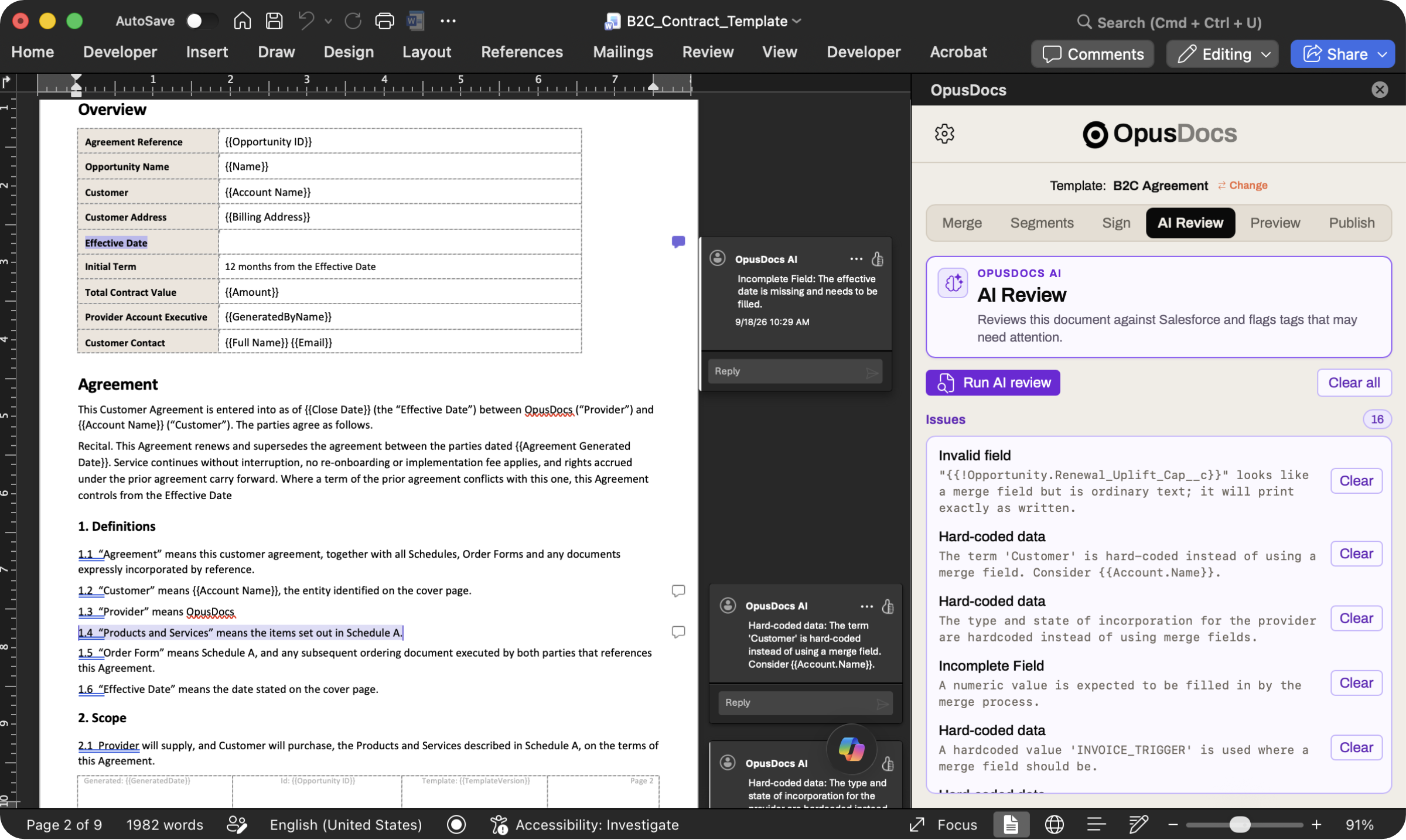
Here is the failure that costs the most: a template that looks finished and isn't. A customer name typed in during drafting and never replaced. A signature block where one party has a tag and the other doesn't. A blank somebody meant to come back to.
None of these break anything. The document generates perfectly and goes out wrong.
AI Review reads the whole template the way a careful reviewer would and reports what it finds:
- Values typed in where a merge field belongs. A specific company, address, amount or date that will be right for exactly one customer and wrong for every other. Where it can, the review names the CRM field that should replace it.
- Missing signature tags. Somewhere the document plainly expects a person to sign, initial, date or witness, with no tag over it. Including the case everyone misses: a two-party execution block where one column is fully tagged and the other is bare.
- Unfilled blanks. A run of underscores, an empty checkbox, an empty cell in a form, a label with nothing after it.
Findings appear in the task pane, and they also land as comments in the document, anchored to the text they're about. That means the review arrives in the format the team already uses to discuss a contract. Your legal reviewer, working in Word for the web, sees the findings in the margin next to the clause, exactly like any other comment, and can reply to them.
Preview with real data
Every other step is preparation for the only question that matters: when this runs against a real customer, does it come out right?
From the Preview tab, the add-in picks a real Salesforce record, a genuine opportunity, and generates the document against it. Not a mock-up with sample data. The real merge, run by the same engine that runs in production:
- every merge field resolved from that record's live data,
- every conditional segment included or dropped according to that record's actual values,
- the whole thing rendered as the finished document.
So you can see that the renewal clause appeared because this deal really is a renewal, that the California notice period is present because this account really is in California, and that the amount reads the way a customer would expect to see it.
This is the loop that used to require IT: push to a sandbox, ask someone to run a generation, wait, eyeball a PDF, find one thing wrong, start again. Now it's a button, and the person pressing it is the person who can tell whether the output is correct.
Publish for review
When the template is right, the Publish tab files it back to Salesforce as a new version, with notes describing what changed. It goes in as a draft submitted for review, so the approval process your organisation already has continues to apply: nothing reaches production because one person decided it was ready.
What's changed is who can do the work before the approval, not whether there's an approval.
And the template itself can be created from here. An author starting a brand-new template names it in the add-in, and OpusDocs creates the record in Salesforce for them. Every piece of Salesforce configuration this workflow needs, the template, its versions, its conditional segments, is created and maintained through the task pane.
What changes for your team
Add it up and the whole authoring loop, from writing the clause to shipping an approved template, happens inside Microsoft Word:
- Finding the right CRM field was an admin or a developer. Now it's the author, describing what they want.
- Writing the conditional rule was a developer, in rule syntax. Now it's the author, in plain language.
- Placing signature tags was a developer. Now it's the author.
- Checking the template is complete was nobody, until a customer found the problem. Now it's AI Review, before publishing.
- Testing against real data was IT, in a sandbox. Now it's the author, in one click.
- Shipping a new version was an IT ticket. Now it's the author, into the same approval process as before.
Nobody logs into Salesforce. Nobody learns a merge syntax. Nobody files a ticket to change a paragraph.
That is not a small convenience. It changes who is accountable for whether a contract is correct. Today, the person who knows what "correct" means for a renewal in California is structurally unable to verify it, and the person who can run the test has no way of judging the answer. Put the whole loop in the hands of the first person and the bottleneck disappears, along with the category of error that comes from one team implementing another team's intent second-hand.
IT stops being the bottleneck for template changes, and gets to work on things only IT can do.
Try your own contract
The quickest way to understand the difference is to watch it happen to a document you recognise. Bring a Word contract and the Salesforce data behind it, and we'll walk through finding fields, setting a condition, running the review, and previewing against one of your real records.
Request a demo, or read more about template authoring in Word.