Browse and insert merge fields
Search the Salesforce fields available to your template and insert the one you choose at the cursor.
OpusDocs Word add-in
Find Salesforce fields, describe conditional content, review potential template issues, and preview the generated document with real CRM data, all in Microsoft Word.
Use the add-in in Word desktop or Word for the web, and coauthor the document with your team.
See it in Microsoft Word
The document and authoring tools stay side by side. Follow the work from Merge to Segments to AI Review.
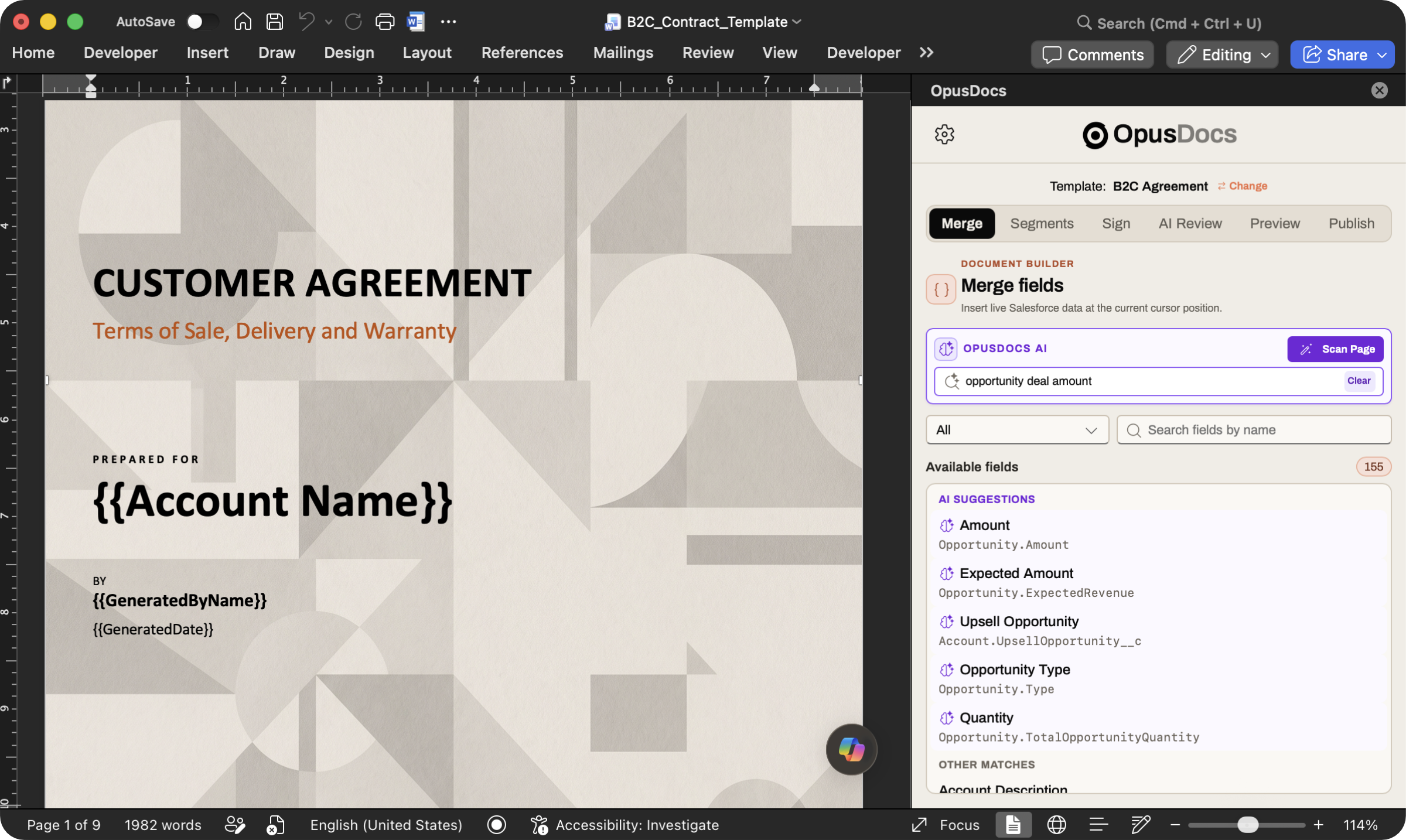
Describe the data; AI finds matching CRM fields.
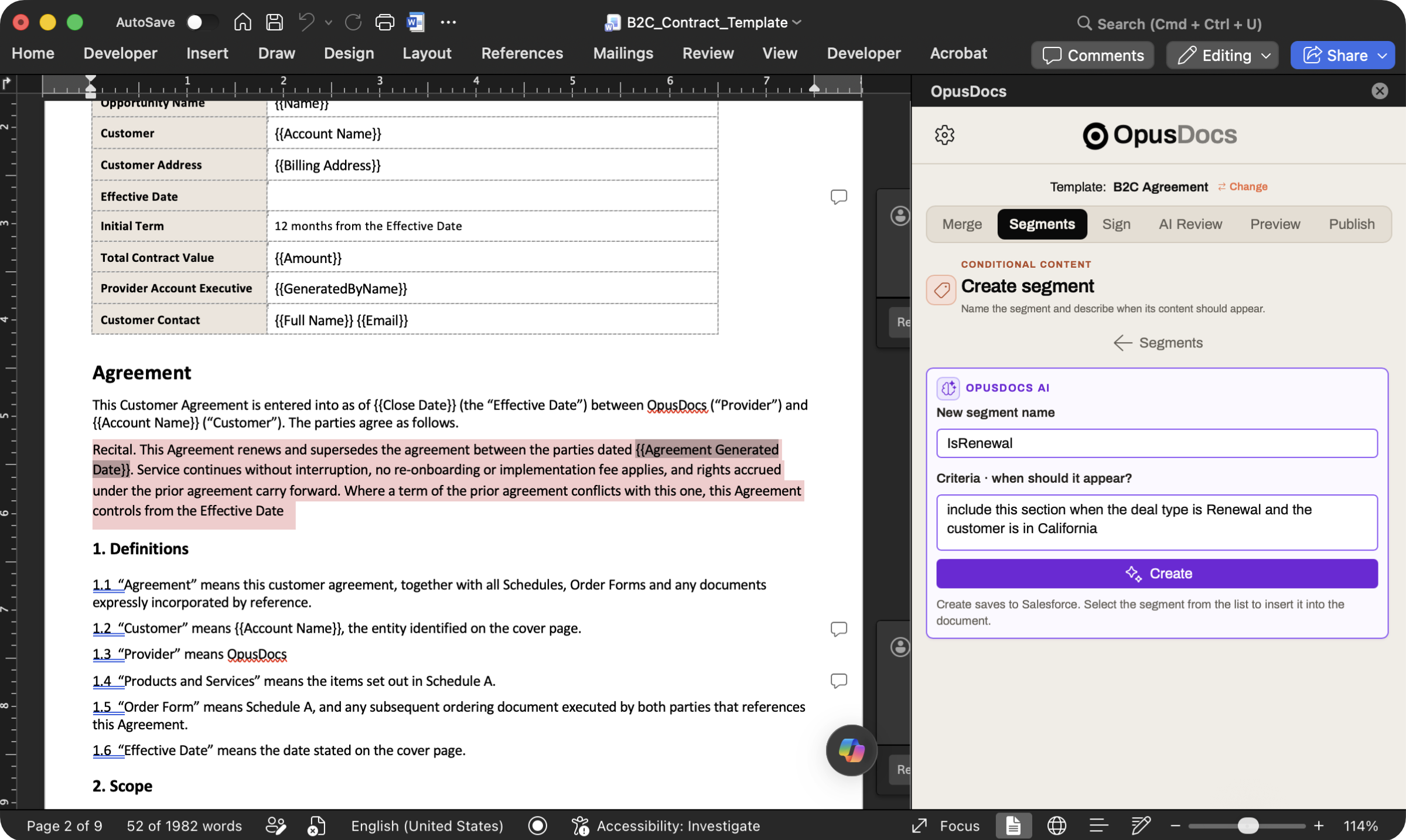
Describe when a clause should appear.
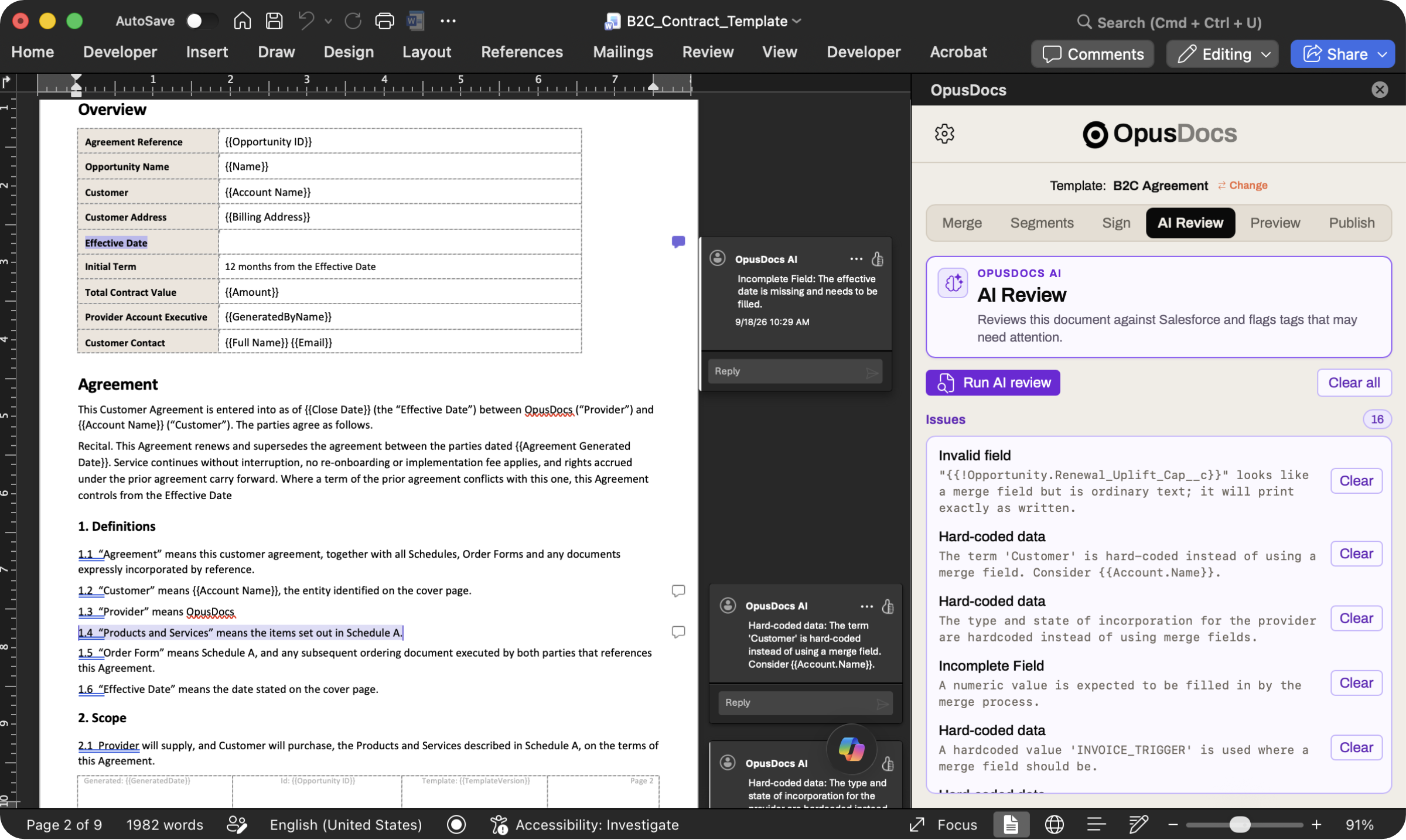
Review findings in the add-in and in Word.
The Word authoring workflow
The add-in connects what you are writing to your Salesforce data and template rules. You choose the fields, apply conditions, resolve review findings, and inspect a generated preview before submitting a version.
Customer agreement
Renewal terms
This agreement renews the prior term for the customer, subject to the approved conditions and effective date.
OpusDocs AI · Merge fields
Describe the data you need or select text in Word. OpusDocs AI suggests fields from your Salesforce catalog, and you choose what to insert.
The full authoring workflow
Search the Salesforce fields available to your template and insert the one you choose at the cursor.
Find existing segments and apply them to selected content, or create criteria for a new segment.
Choose a signer and insert the appropriate signature tags in the document.
Publish the Word template to Salesforce with notes describing what changed.
AI features depend on your organization’s configuration. New templates are first created in Salesforce before they can be previewed against a record.
Bring a Word document and the Salesforce data it needs. We will walk through fields, conditions, review, and a real-record preview.
Request a demo